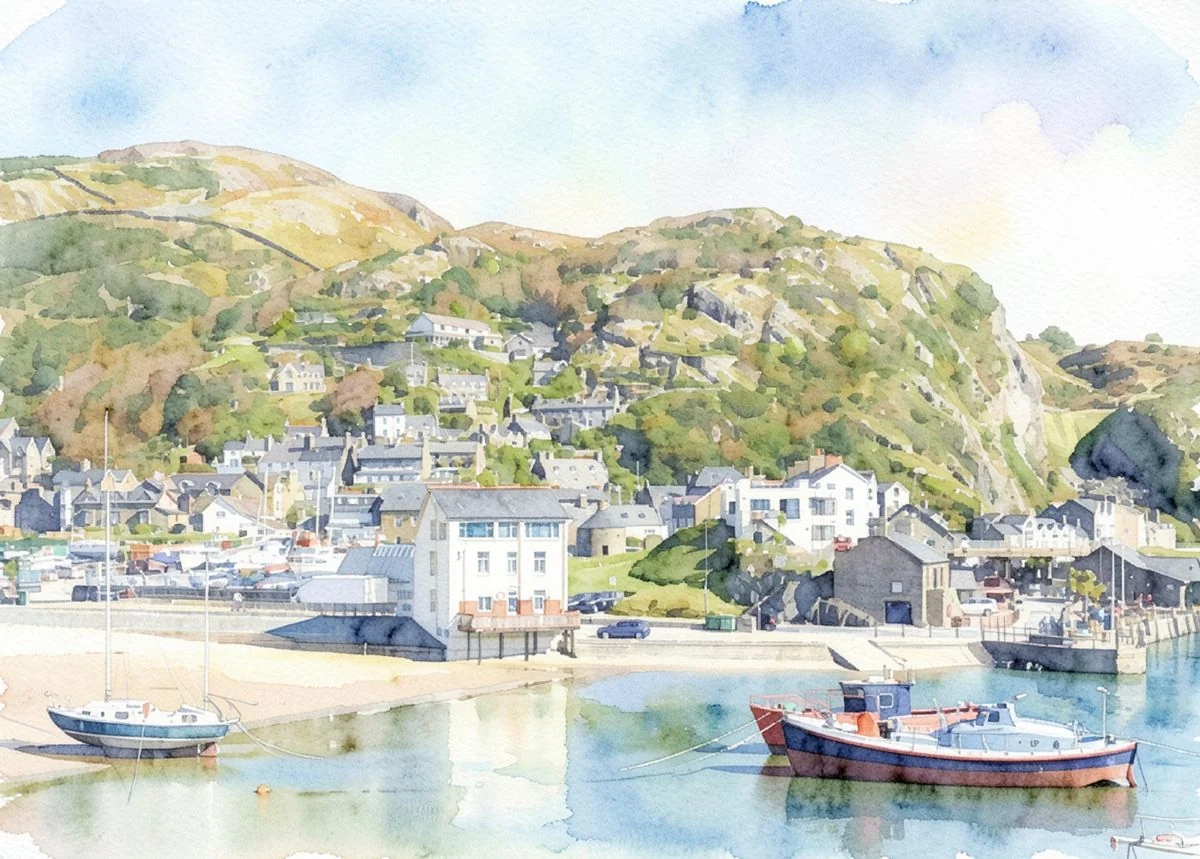




To optimise images for your website, resize each one to the size it’s actually shown, compress it, save it in a modern format like WebP, and give it a clear file name and description. Done properly, a 5MB photo from your phone becomes around 150 to 300KB and looks the same on screen.
Images are usually the heaviest thing on a small business website. Getting them right is the quickest way to make a slow site faster.
Why it matters
A photo straight from a modern phone is often 4,000 pixels wide or more and several megabytes. Your website might show it 800 or 1,600 pixels wide. Every visitor still downloads the full file, on whatever signal they have. Ten photos like that on one page is a page nobody waits for.
Google measures this too. Large images are one of the most common reasons a page fails Core Web Vitals, which feed into how it ranks pages. See how to speed up your website for the other causes.
Step 1: resize to the size it’s shown
Work out how wide each image appears on your site, and resize it to about that, allowing a little extra for sharp screens. As a rough guide:
| Where it’s used | Width to save it at |
|---|---|
| Full-width banner or header | 1,600 to 2,000 pixels |
| Image in the main text | 1,000 to 1,200 pixels |
| Gallery thumbnail | 400 to 600 pixels |
| Logo | Use an SVG if you can, otherwise twice the size it’s shown |
You can resize on a computer with the built-in photo apps (Photos on Windows, Preview on a Mac), or with a free tool like Squoosh.
Step 2: compress it
Compression makes the file smaller by removing detail your eye won’t notice. For photos, a quality setting of about 75 to 80 percent is usually indistinguishable from the original. Squoosh lets you compare side by side as you drag the slider.
Step 3: use the right format
- WebP for photos and most images. Smaller than JPEG at the same quality, and supported by every modern browser.
- AVIF is smaller still, and widely supported now, though some older software can’t open it.
- JPEG is fine if your website system doesn’t accept WebP.
- PNG only for graphics with sharp edges or transparency, like screenshots or logos. Never for photos.
- SVG for logos and icons, where your designer can provide one.
Step 4: name it and describe it
Before uploading, rename the file from IMG_4827.jpg to something that says what it is: kitchen-extension-barmouth.webp. It’s a small signal to Google about what the image shows.
Then add alt text when you upload it: a short, plain description of the image, like “New oak kitchen with a stone floor”. Screen readers read it aloud to people who can’t see the image, and Google uses it to understand the picture. Describe it; don’t stuff it with keywords.
Step 5: let images load when needed
Images further down the page don’t need to load until someone scrolls to them. This is called lazy loading. Most modern website systems do it automatically. If you’re on WordPress, it’s built in for most images. The one exception is the main image at the top of the page, which should load straight away.
If you’re on Wix, Squarespace or WordPress
- Wix and Squarespace resize and convert images for you, to a point. It still helps to upload sensibly sized files rather than full-size phone photos.
- WordPress creates several sizes of each upload. An image optimisation plugin can compress them and convert to WebP automatically.
A quick routine for every new photo
- Resize to the width it’ll be shown at
- Compress to around 75 to 80 percent quality
- Save as WebP
- Rename it to describe what it shows
- Add alt text when you upload it
Want to know if images are slowing your site down? The free website check runs Google’s speed test on your site and tells you, in plain English, what’s worth fixing first.